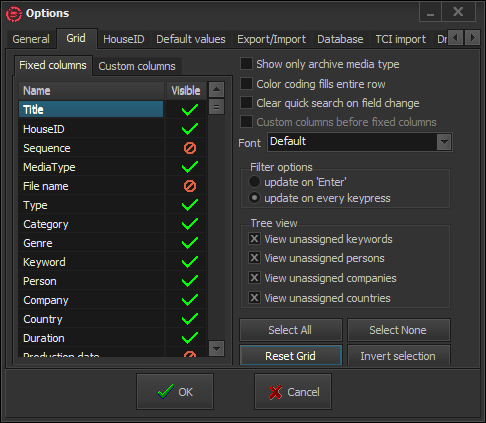
Grid
All available data fields are listed to the left of this page.
Fixed columns
Name - the name of the data field
Visible – Each field could be visible [Yes] or not [No] in the Grid. To switch the visibility status of a field, just double-click it.
Custom columns
Here you will review all data inserted as Custom properties of the records. To switch the visibility status of a field, just double-click it.
Buttons
These buttons are valid only for to the fields’ area.
Select All button – sets all fields visible.
Select None button – sets all fields to invisible.
Reset Grid button – resets the fields’ settings as defined in the program.
Invert selection button – inverts all settings.
Check boxes
Show only archive media type – The Media type column, shows only Media types that have Archive flag.
Color coding fill entire row – fills the entire grid row with the color of the field as selected for color coding in Options -> Default values and previously set in the relevant Main menu item.
Clear quick search on field change – when typing in a column header to perform a quick search, X-Pert Compact MAM will filter only the entries that correspond to your requirements. Then, if you click on a category in the tree view, the filter will still apply. Thus, you will actually refine the search. If you want to be able to view all entries that belong to a category from the tree view after a quick search has been performed, check this box.
Custom columns before fixed columns – check this to order the custom columns before the fixed columns in the Grid.
Filter Options
This field defines how the Grid will be refreshed during grid column filtering.
Update on Enter – the Grid will be refreshed after pressing <Enter>.
Update on every key press – the Grid will be refreshed after each key stroke.
NOTE: Use this option with caution – it may take a long time to refresh a large database.
Tree View Options
The Tree view displays the classification scheme of records as a tree (similar to Windows Explorer). You can define various classification criteria and enter their representatives in advance, such as countries, persons, keywords, etc. If you want to see all of these entries (no matter if they are assigned to any record or not) in the Tree View, check the corresponding boxes in Options -> Grid -> Tree View. If you want to view only the entries, that are assigned to some record, do not check the boxes .
A more detailed description of the Tree View and the Classifications can be found in the corresponding sections of this manual.