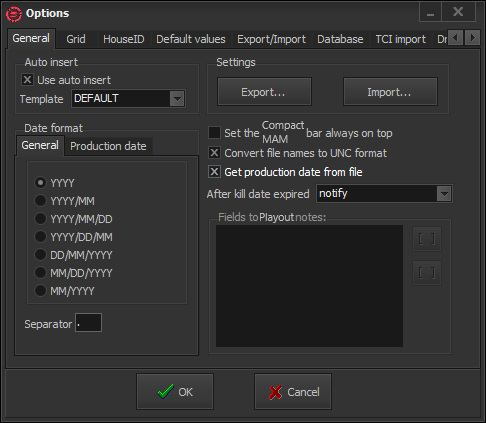
General
For example, if your *.gdb file is on drive D, it should be shared EXACTLY as "D". Windows OS tends to make the default share names explanatory (i.e., D on PC Name), so you have to be very careful with that.
Use Auto insert – check it to make auto insertion of files into the database, when creating new records via drag-n-dropping files.
Template – you can choose [Default] options for describing the inserted files as well as a template record.
Date format – defines a format for entering and viewing dates.
General – Click on the respective radio button of the preferred format (year; year/month, year/month/day, year/day/month, day/month/year, month/day/year, month/year) and define the separator sign. By default, the date format is DD/MM/YYYY and the separator is a dot.
Production date – You can define a separate format for the Production date, which can differ from the other dates. By default, the production date format is YYYY.
Settings – You can import / export all settings, applied in the Options dialog.
The Export button will save the settings into a *.dbs file.
The Import button will open an already created *.dbs file and apply the settings to the current X-Pert Compact MAM instance.
After kill date expired determines how X-Pert Compact MAM should proceed with expired instances. There are two possibilities:
- delete the instances (if they are files) without notification.
- notify for expired instances and show their records in Expired node in the Tree View.
Fields to X-Pert Playout Notes – here you can define which fields should appear in the Notes field in X-Pert Playout.
To add a field, press the Plus  button to the right of the window and choose a field from the list. To delete a field, select it and press the Minus
  button.